
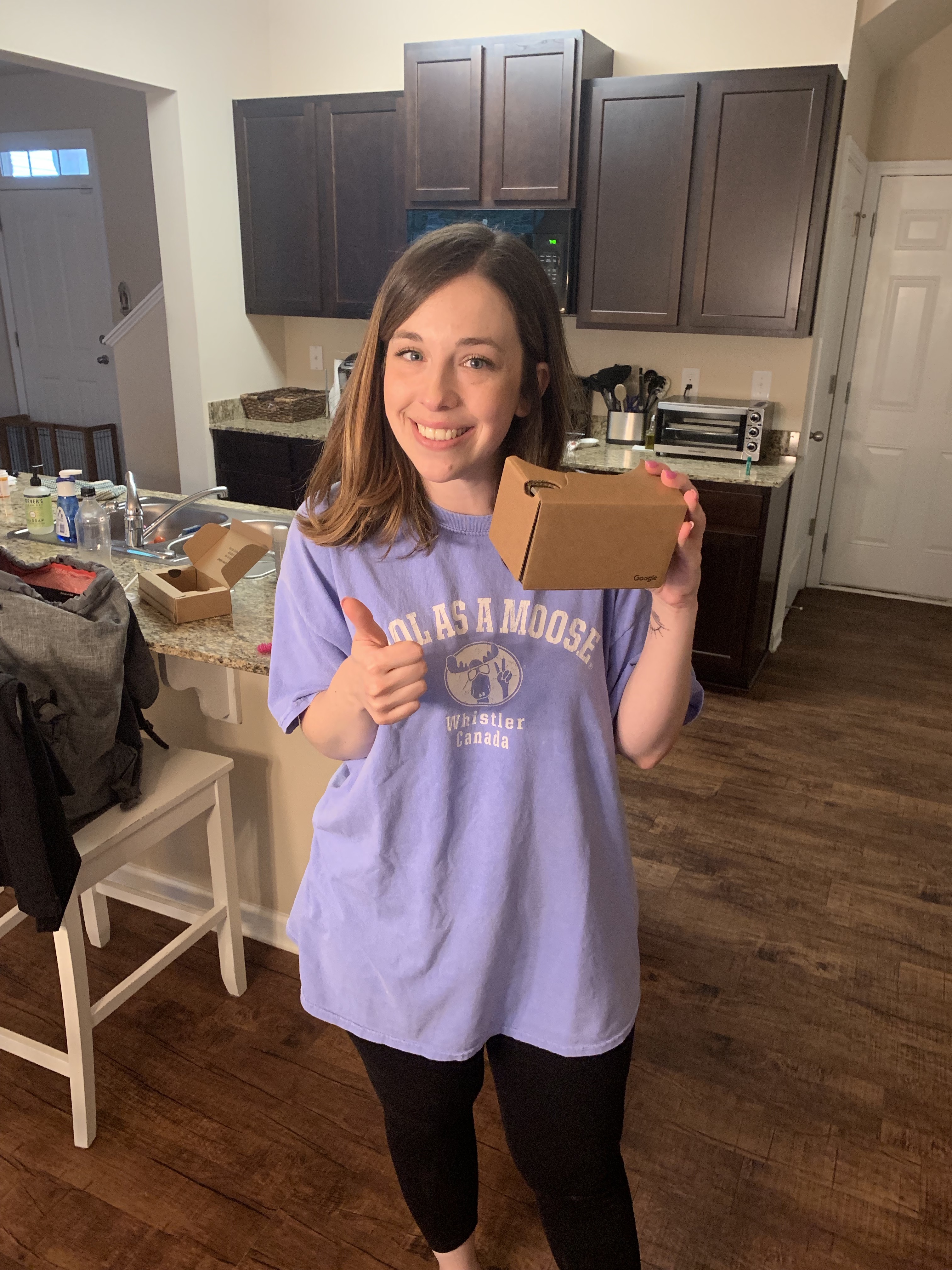
When I found out that I, a broke college student, had to pay $15 for a piece of cardboard, I was not pleased. I had previously tried virtual reality (VR) goggles, and I didn’t have high hopes that this would compare – and even if it did compare, would it be worth my $15?
Today, the long-awaited test finally came when I took my little Google Cardboard out of the big cardboard box in which it came and downloaded the Google Cardboard app. Eagerly, I tried to assemble my new goggles without looking at the directions. That didn’t work. Then, I tried to read the directions, which are photo instructions. That also didn’t work, and my classmate and I became baffled and frustrated.
Our next attempt included looking up a YouTube tutorial, and this did the trick. It turns out that you can’t use Google Cardboard with your phone case on! Once we got the goggles assembled and the app up and running, we started to explore the virtual realities that came free with the Google Cardboard app. The ones to select from were the following: Explore, Exhibit, Urban Hike, Kaleidoscope, and Arctic Journey. The first one that I decided to explore was Arctic Journey. I was a little disappointed because the view was a bit blurry, and it only offers a 360 view. What I mean by this is that you can spin around, but you can’t walk or go anywhere within the virtual reality. The Arctic Journey offered various different scenarios, but I chose to fly with the birds. I have to admit, I really loved this! It definitely didn’t feel like the expensive VR goggles, but for $15, it was pretty neat. I could see using this in a classroom to explore and write about unfamiliar locations; I remember doing a travel writing assignment in a class last summer, and this device could transport students anywhere in the world – or, at least, to the places that are included in the app. Speaking of which, I would recommend downloading the Expedition app by Google. It offers many more destinations and even includes information about the tours.
Affordances:
- Easy to use once it’s assembled
- Offers a variety of free demos
- Connects to various VR apps
- Can take screenshots
- Provides a 360 view and various experiences
- Offers the opportunity for additional VR experiences through apps such as Expedition and WITHIN
- Ships quickly with Prime
Constraints:
- Assembly is not intuitive
- Costs $15
- Students must have a smartphone
- Can only connect to one phone at a time, so students can’t share
- Can’t move around, 360 view only
- Can’t use with phone case
Tips:
- Make sure that you have an alternative way of providing these for students who can’t afford to purchase one
- Use in big, open spaces and have students help each other to make sure they don’t run into anything
- Assemble together so that you can lead students through the process step-by-step
- Make sure all students have access to a smartphone
- Go through the tutorial as a class; it’s helpful!
The Verdict: Would I recommend this tool for a class? I’m not sure yet. Honestly, I think I have more exploring to do in order to see what you can really do with Google Cardboard, so I’m about to go download more VR apps and maybe pay for some additional excursions. I guess I’m just not sure how I’d be able to plan enough lessons using the Google Cardboard to make it worth the purchase. I want to use this in my class, because it’s neat and my students would like it; still, I just don’t know how I could justify the cost for my low-income students. I’d love any ideas for how you’ve used this in your own classroom and how you made it accessible for all your students! I think this has the potential to be a great tool; I’m just not sure how practical it is.
 The High-Tech Teacher